Before you upgrade your self-hosted agent server
Four self-hosted agent servers broke after a normal upgrade. Seven checks before you upgrade yours: version, what changed, backup, database changes, roles, the way back, a test copy.

A user who runs a workflow server on their own machines, with several workers and a PostgreSQL database, reported on the project's issue tracker that an upgrade made work disappear. One of their production workflows started child workflows, then parked at a wait step until the children called it back. After a minor upgrade, some of those parked runs were deleted while they waited. When the children called back, they got an error that the run did not exist. The database had no row for the parked runs.
The user tested more versions. The version before the upgrade worked. A later version was still broken. They went back to the version that worked and held every upgrade after it. They also found that the fault stopped when the parent workflow saved its successful runs.
The server did not crash. Runs that were waiting were simply gone.
Three more upgrades, three more tools
The other reports we read were loud.
A user who runs an agent builder in Docker reported that after an upgrade of one patch version, the server did not start. It crashed during start-up. A fresh, empty data volume gave the same crash, so the stored data was not the cause. The previous version started with the same setup. Within a week, three more users reported the same crash. One of them pinned the previous image, and the server ran again.
A user who runs an agent API server from the vendor's container image reported in the vendor's forum that the container failed at start with an import error. They had not chosen to upgrade. The image tag in their setup was the same, but the image behind it had changed: a few hours earlier, everything had worked. A member of the vendor's team advised pinning the version. The user then pinned the image by its digest, a fingerprint of one exact image, and had a setup that worked.
A user who runs an LLM app platform in Docker reported that after an upgrade across several versions, every knowledge page returned a server error. The user thought the jump was too big, so they moved only to the next minor version. The error stayed. Their log showed why: the new code read a database column that did not exist. A database change that the new version needed had not been made. Back on the original version, the pages worked again.
What the four have in common
Each user ran the server themselves, and each upgrade was a normal step forward. In three cases the fault was loud: the server did not start, or a page failed. In one case the server kept running and work disappeared.
In all four, the way out was the same: go back to the version that worked, or pin it so that it could not move. Going back worked in these cases. It does not always work. If the new version has already changed the database, the old version may not be able to read it. Then the way back is a backup taken before the upgrade.
Owning the server means owning its upgrades too. For the rest of what ownership takes, see self-hosted AI: how to own your AI stack.
Seven checks before you upgrade
These checks apply to any self-hosted agent or workflow server, ours included. Where EpicStaff has an answer, it is under the check.
1. Pin the version you run
A tag such as "latest", or a version tag that a vendor can move, can change under you. The forum user above did not choose to upgrade. Write down the exact version you run, and make your setup ask for it by name. Then an upgrade happens when you decide.
In EpicStaff: Pin the version: set IMAGE_TAG to a release, or check out a release tag. EpicStaff does not update itself. The version you run changes only when you change it. You upgrade when you choose to: pull new code and rebuild, or set a new image tag and pull.
2. Read what changed, for every version in between
Read what changed in each version between the one you run and the one you want, not only the newest. Look for database changes, new features that are on by default, changed settings and removed options. If you cannot find what changed, treat the upgrade as a large one and test it on a copy first (check 7).
3. Back up the database and the file storage, and test the restore
The database alone is not the system. Uploaded files, documents and media often live somewhere else. Back up both at the same moment. Then restore them once on a spare machine, before the upgrade. A backup that you have never restored is a hope, not a plan.
In EpicStaff: Run records live in your own PostgreSQL database. Back up the file store and the media volume too.
4. Know when database changes run, and where a failure shows
Many servers change their database on their own when a new version starts. The missing column above is one sign that such a change did not happen. Find out whether your tool makes these changes at start, by hand, or both. Then find out where a failure shows: on screen, in a log, or only as a broken page later. Read the server log after the first start, before your users come back.
In EpicStaff: Each time the server starts, it applies any new database changes on its own. If one fails, the server does not start, and the server's container log says why.
5. Check roles and rights after the upgrade
An upgrade can change what a built-in role may do. A right that people relied on can disappear. After the upgrade, sign in as each kind of user and try the tasks that matter most.
In EpicStaff: The four built-in roles are re-applied from a file each time the server starts. If a new version drops a right from a built-in role, that right is removed, and each change is printed to the server log at start. After an upgrade, check the server log for changes to the built-in roles. The role file does not change custom roles.
6. Know your way back before you need it
Decide before the upgrade how you will go back, who decides, and how long you wait before you do. Going back to the old image worked in the four reports above. If the database has already changed, it may not. Then the backup from check 3 is your way back.
In EpicStaff: There is no supported way back. Restore your backup.
For what a server should keep when it fails, see The server will fail. What matters is what survives it.
7. Upgrade a copy first
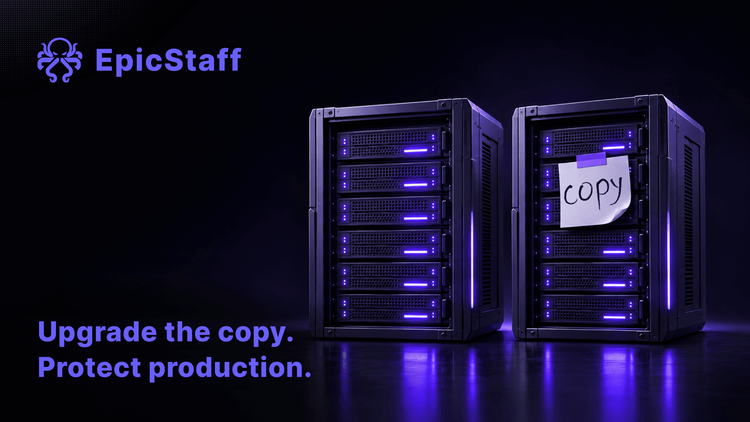
Run the new version on a copy of your server, with a copy of real data, before production. Run the workflows that matter most, including one that waits for a person or for another workflow, like the parked runs above. Compare the results with production. A copy will not catch everything. It does catch a server that does not start, a missing column or a changed role before your users do. The same idea holds for the agents themselves; see what runs live is not what you tested.
The hard part comes after the upgrade
In all four reports, the upgrade itself was one step. The work came after it: finding the cause, going back, and in one case holding every later version. That work costs less before the upgrade than after it.
So put the seven answers on one page: the version you run, the version you want, where the backup is, when you last restored it, where the log is, and who decides to go back. Then choose the date.
Questions & Answers
What is the difference between pinning an image tag and pinning a digest?
A tag is a name, and the publisher can point it at a new image. A digest is a fingerprint of one exact image, so it cannot change. If you pin a tag that the publisher moves, you can get a new version without choosing it. A digest pin stops that, but you then update the digest yourself when you decide to upgrade.
Can I skip versions when I upgrade a self-hosted server?
It depends on the tool. Some tools expect database changes to run in order, one version after another. Read what changed in every version between yours and the target, not only the target. Then test the whole jump on a copy, with a copy of real data.
How do I roll back a failed upgrade of a self-hosted server?
If the database has not changed, start the old version again. If database changes ran when the new version started, the old version may not read the database. Then restore the database and the file storage from the backup you took before the upgrade, and start the old version. Test that restore before the upgrade day.
Does a self-hosted EpicStaff server update itself?
No. EpicStaff does not update itself. The version you run changes only when you change it. Pin the version: set IMAGE_TAG to a release, or check out a release tag. EpicStaff runs on your own infrastructure. Run records live in your own PostgreSQL database. Back up the file store and the media volume too.