It works for the builder. It fails for the people you share it with.
An agent that works for its builder can fail for the people it is shared with. Seven checks to run before you share an AI agent or workflow.

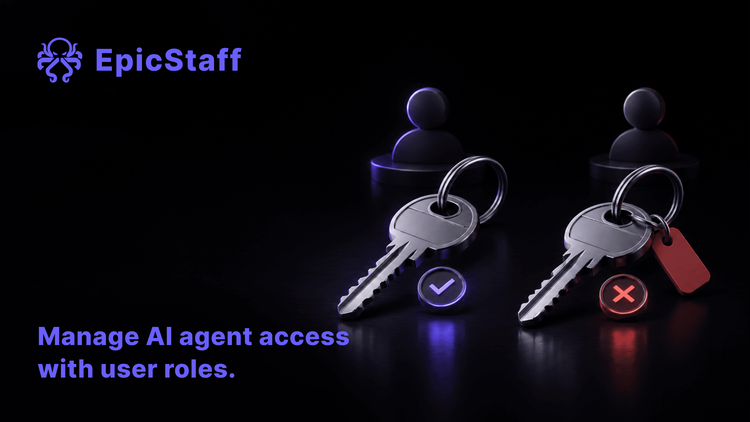
Many agents are tested by one person: the person who built them. They have the widest access and the saved logins. When the agent works for them, it looks finished.
Then it is shared. Other people start it, with other accounts, through other channels. Sometimes it stops working, for them only.
Three teams reported this on the same vendor's community forum in September 2026. The tool is not the point. The pattern is.
Three reports, one pattern
The same user, the same connection, two results. A builder reported an agent with two tools: one queried a business reporting dataset, the other called the company's own APIs through a gateway. Both worked for the builder. They shared the agent with a group of users who had the agent roles and rights on the dataset. For those users, the API tool worked and the dataset tool failed. With the users' own credentials, it returned an authorisation error. With the builder's credentials, it returned an error that the connection was not found. The builder then built the same agent on a second agent engine of the same platform, with the same data connection. There, the same user could query the dataset. An experienced forum member wrote that this test ruled out a permission, licence or missing-connection cause.
It works for the developers. Users get an error. A team reported an agent with a step that calls a custom AI prompt, which worked for the developers. When they shared the agent, users got an error, although the prompt was shared with them too. One reply noted that the error carried too little detail to find the cause. Another reply suggested that sharing the prompt gives users its definition, but not the capacity to run it. The team did not accept that answer. They asked how they could find the cause without admin rights on the platform. The thread is not resolved.
The test pane passed. The deployed agent did not. A third team reported an agent with programmed conversation steps that worked as designed in the builder's test pane. Deployed to the company's chat and assistant apps, it ignored most of those steps: the welcome message, the multiple-choice options and the connectors. The model alone decided what to do. Replies suggested checking the published version, the settings and a cache, and publishing again. The team answered that, with the same settings, test and production still behaved differently, and that this forced them to start the build again.
What the three have in common
In each case the build was correct for one person in one place: the builder's account, the builder's credential, or the builder's test pane. When the person, the credential or the channel changed, the result changed.
In none of the three did the build itself show why. Each team found the gap when other people started the agent.
Seven checks before you share an agent or workflow
These checks apply to any tool that lets you build an agent or a workflow and share it, ours included. Where EpicStaff answers a check, the answer is under it.
1. Know whose rights a run uses when someone else starts it
There are two common models. In the first, the run acts with the rights of the person who started it, so the same agent can do more for one user than for another. In the second, the run acts with the setup of the agent or workflow itself, whoever starts it. Both models can be right. You need to know which one you have, because it decides what each user can reach through the agent.
In EpicStaff: An admin gives each user a role, and each role says what that user may do with flows, agents, tools and credentials. Who may start a flow is checked once, at the start. After that, the run uses the flow's own setup, not the starter's rights.
2. Know which credential the run uses
A credential is the key, token or login that a tool uses to reach another system. Some tools use the credential of the person who starts the run. Others use one stored credential for everyone. The first kind fails for users without their own access. The second kind works for everyone who may start the run, and gives each of them the reach of that one key. For more on one key that serves everyone, see One key, every client: the quiet risk inside your automation server.
Write down, for each tool in the agent, which credential it uses and whose account it belongs to.
In EpicStaff: A run uses the same stored credential whoever starts it.
3. Know whether a test run is the same as a real run
A test pane can run a different version, different settings or a different engine than the published agent. A test that passes there then says little about production. Ask which saved version the test runs, on which engine, and with whose account. For how to keep what runs live the same as what you tested, see What runs live is not what you tested.
In EpicStaff: A test run in the editor and a run started any other way run the same saved flow on the same engine.
4. Know what the error says when a user is refused
A user who is refused should see that they were refused, and why: no access to the agent, to a tool, or to the data behind it. Before you share, start the agent with an account that lacks one right, and read what that user sees. Then read what the builder or the admin sees for the same run. If neither tells you which right was missing, decide now how you will find out.
5. Check what each role can do before you share
Roles and groups decide who may open, start and change an agent, and who may use its tools and credentials. Read the role of each group you plan to share with. For each role, write down what it may do with the agent, its tools and its credentials. Also check who can see the run results. A run result can hold data from the systems the agent reached, and the people who read it need the right to see that data.
6. Check that the record says who started the run
When a shared agent fails for one user, the first question is: whose run was it? A run record without the starter's name makes that hard to answer. For what else a run record should hold, see The agent finished. Nobody can say what it did.
In EpicStaff: The JSON export of each run records who started it.
7. Test as a normal user, through the real channel
Make a test account with the same role as the people you will share with: not an admin, and not the builder. Start the agent the way they will, from the published version, through the same chat app, form or API. Run three tasks they will really do, and one task they should not be allowed to do. Compare each result with the builder's own run. Keep the account, and repeat the test after every change to the agent, the roles or the credentials.
Sharing is a release
In many teams, sharing an agent is one click on a share button. That click changes who runs the agent, with which rights, through which channel. It is a release, and it needs what a release gets: a named owner, a test with a normal account, a written note of which credential each tool uses, and a way to take the share back.
The three teams above found their gaps after the share. The same checks cost less before it.
Questions & Answers
Why does my AI agent work for me but not for other users?
Compare your run with theirs on four points: the account, the credential, the version and the channel. A tool can use each user's own login, and a user can lack access to the system behind it. The shared agent can also run a different version or setting than your test. Start the agent with a normal user's account and compare the two runs step by step.
How do I share an AI agent without giving users admin rights?
Give users a role that lets them start the agent, and nothing more. Keep the right to change the agent, its tools and its credentials with the builders and admins. Then check what the agent can reach for them, because a stored credential gives every user who may start the run the reach of that key.
How can I test an AI agent as another user?
Ask your admin for a test account with the same role as the users. Do not use an admin account, and do not borrow a real user's login. Start the agent the way the users will, through the published version and the real channel, and compare the result with your own run.
Whose rights and credentials does an EpicStaff flow use when another user starts it?
Who may start a flow is checked once, at the start. After that, the run uses the flow's own setup, not the starter's rights. A run uses the same stored credential whoever starts it. The JSON export of each run records who started it.