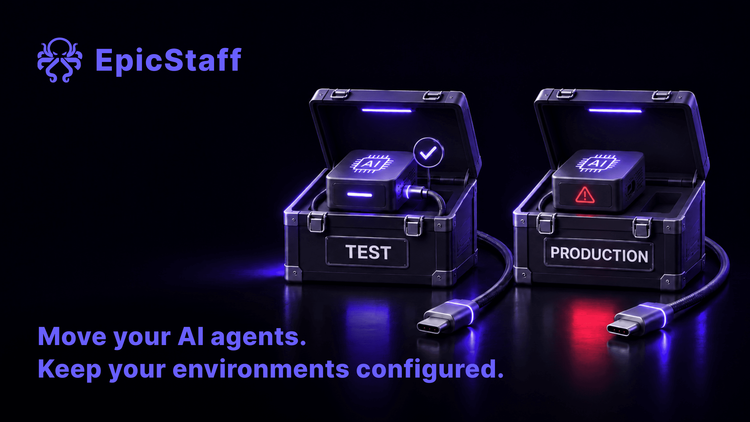
It worked in test. Moving it to production broke it.
An agent that works on the test installation can fail on the live one. Seven checks for moving an AI agent or workflow from test to production.

How does an agent get from your test installation to your live one? In many teams the answer is an export file and an import button. The import finishes without an error, and the move looks done.
The move is not done yet. An export carries the build. It does not always carry what the build depends on: keys, documents, a time zone, a web address. Those stay behind. The live installation fills the gap with its own settings, or with nothing.
Three reports from 2026 show where that gap appeared.
Three reports from the move to live
The import worked. Publishing did not. A team reported that they had built an agent with a child agent, a second agent that the first one calls, in their development environment. To give more users access, they exported the agent and imported it into their production environment. The import succeeded. They could share the agent and add it to the company chat channel. When they tried to publish it, they got an error about a property path in the child agent. An experienced forum member answered within the hour. The reply said that, after an import, a check at publish time fails on the inputs of child agents, also when testing works. It advised removing those inputs, or building the child agent again in the target environment. The thread does not say whether the advice worked.
The test address answered. The live address did not. A user reported a hosted workflow workspace that had run live workflows before. A new workflow with one step, an incoming webhook, worked on its test address. The production address returned an HTTP 500 error, and no run appeared in the run history. A published schedule started no runs at all, while runs started by hand worked. A new workflow, a new path and a call without authentication changed nothing. Replies suggested restarting the workspace, contacting support, and checking whether the plan's monthly run limit had been reached. When the page was read four days later, the user had not answered, and the thread was not solved.
The time zone nobody chose. A third user reported a lesson from running workflows for clients. A daily summary, written by a language model, was meant to reach a client every morning. It worked for weeks. Then the client asked why the summary had arrived at the wrong hour. The cause the user gave: the schedule used a time zone that nobody had set on purpose, the developer's laptop and the production server used different zones, and nothing warned. A reply corrected the details: the documented default zone for self-hosted installations is a fixed zone, not the server container's own, and the hours in the example did not add up. The user agreed that the example as written did not reproduce, and rewrote the post. We list this case for its pattern, not its numbers: a setting that differs per installation, with no warning.
What the three have in common
In each case, the build passed its test. What changed was where it ran: another environment, another web address, another clock. The live side was missing something, set something differently, or checked something the test side did not.
In none of the three did the live side name that difference. The teams found it through an error about something else, a schedule that stayed silent, and a client's question. For the same pattern when an agent moves from its builder to other users, see It works for the builder. It fails for the people you share it with.
Seven checks before you move an agent or workflow to production
These checks apply to any tool that lets you build an agent or a workflow on one installation and run it on another, ours included. Where EpicStaff answers a check, the answer is under it.
1. Know what the export carries, and what it leaves behind
An export file holds the build. Ask what else it holds. Keys, tokens and passwords are often left out on purpose, so that they do not travel in a file. Documents behind a knowledge base, links to other systems and settings of the installation itself can stay behind too. For why a build that exists as a file is easier to own, see If your agents live only in a screen, you do not really own them.
Make a list of everything the build uses, and mark what the export carries.
In EpicStaff: A flow, with its agents, tools and model settings, can be handed over as one export file (JSON). Keys, knowledge documents and their links are set up again in the new installation.
2. Connect keys and model settings on purpose
After the move, each tool that reaches another system needs a key in the new installation. Decide which key. A live installation should use a live key that belongs to it, not a copy of the test key. Write down who owns each key, and who can replace it.
In EpicStaff: After an import, connect the keys again, tool by tool.
3. Know whether the import tells you what is missing
A successful import says that the file was read. It does not always say that everything the build needs is in place. If the import gives no list of missing keys, documents or links, use your own list from check 1 and tick off each line in the new installation. The first real run (check 7) is the last test of that list.
4. Know whether version history moves with the build
On the test installation, you can often see what changed and go back. On the live one, the build can arrive as a single version with no history. Ask what an import does with versions: whether a new import starts empty, and whether an import over an existing build keeps its history. For how to keep what runs live the same as what you tested, see What runs live is not what you tested.
Before every import into a live installation, save a copy of the live build, so that you have a way back.
In EpicStaff: A new import starts with no saved versions. An import that replaces an existing flow keeps that flow's history, and first saves a version named "Before import". The agents and model settings it uses may arrive as new copies rather than updating the ones already there.
5. Decide how test and live stay in step
After the first move, both installations change. Someone fixes a prompt on live; someone adds a step on test. Decide in which direction changes travel, who moves them, and how often. A move that a script makes the same way each time drifts less than a move by hand.
In EpicStaff: Test and live installations are kept in step by export and import, which can be scripted through the API.
6. List the settings that differ per installation
Some settings belong to the installation, not to the build: the model and its endpoint, the time zone, the web addresses that start a run or that the flow calls, and the schedules. Make a short table with two columns, test and live, and fill in each row. The same table helps before an upgrade; see Before you upgrade your self-hosted agent server.
A difference you chose is part of the design. A difference nobody chose is a likely cause of the next failure.
In EpicStaff: Each installation has its own model settings and keys, so a flow can point at a different model or endpoint there without being edited.
7. Run it once for real before anyone relies on it
Run the flow once in the new installation before anyone relies on it. Use real input, through the real entry point: the live web address, the live chat channel, or the live schedule. For a schedule, wait for the first run and check the hour it started. Then read the run record, and compare it with the same run on test: the model that answered, the systems that were reached, and the result. For how to test the parts of a workflow that should not vary, see You cannot test an AI agent like normal code. You can test most of the workflow. For how to ask afterwards why a run took a particular branch, see Ask the flow what it did.
A short list for the day of the move
Before the export:
- the list of everything the build uses, with what the export carries marked;
- the table of settings that differ between test and live;
- a saved copy of the live build, if one exists.
After the import:
- each key connected, and its owner written down;
- one real run through the live entry point, compared with test;
- the first scheduled run checked at the hour it started.
The three teams above found what was missing after the move. A list on the day of the move finds it before anyone relies on the result.
Q&A
Why does my AI agent work in test but not in production?
Because test and production are rarely the same place. Compare four things: the keys and accounts, the model and its endpoint, the installation settings such as time zone and web addresses, and the entry point that starts the run. The build can be identical while all four differ. Start one real run in production and compare its record with the test run.
Should test and production use separate API keys?
Yes. Separate keys stop a test run from spending on a live account or writing to live systems. They also let you revoke one key without stopping the other installation. Give each key a named owner, and write down which installation uses it.
Why does a scheduled workflow run at the wrong time after deployment?
A schedule runs in the time zone of the installation it runs on. That zone can be a default that nobody chose, and a laptop and a server can use different zones. Set the time zone on purpose in each installation, and check the hour of the first scheduled run after every move.
How do I move an EpicStaff flow from a test installation to a live one?
A flow, with its agents, tools and model settings, can be handed over as one export file (JSON). Keys, knowledge documents and their links are set up again in the new installation. After an import, connect the keys again, tool by tool. Test and live installations are kept in step by export and import, which can be scripted through the API.